Run status
The moment you press Run Rehearsal, you’ll see the launch view. It moves through three phases, launching the simulation, running the interviews, and analyzing the results into your report. You’ll see a globe with a dot for every replica, then a live wall of interviews streaming in as they happen. A timer shows elapsed time and the estimated total. You don’t need to watch it. Press Minimize and go do something else. The Rehearsal keeps running, and its card on the dashboard shows the Running state with an estimated progress bar. If you do stay, the launch view turns into the finished report on its own. Either way, we email you when the report is ready, and the card flips to Completed with an Unread badge.Simulation details
Every run has a simulation view with three sections. Details, Cohort, and Interview Transcripts. Details shows the goal of the simulation, the date, a live count of in-depth interviews, the artifacts being tested, and the interview questions. Cohort shows who is being interviewed, with each replica’s screener results and Evidence Base. Interview Transcripts is where the conversations live, updating in real time as interviews complete.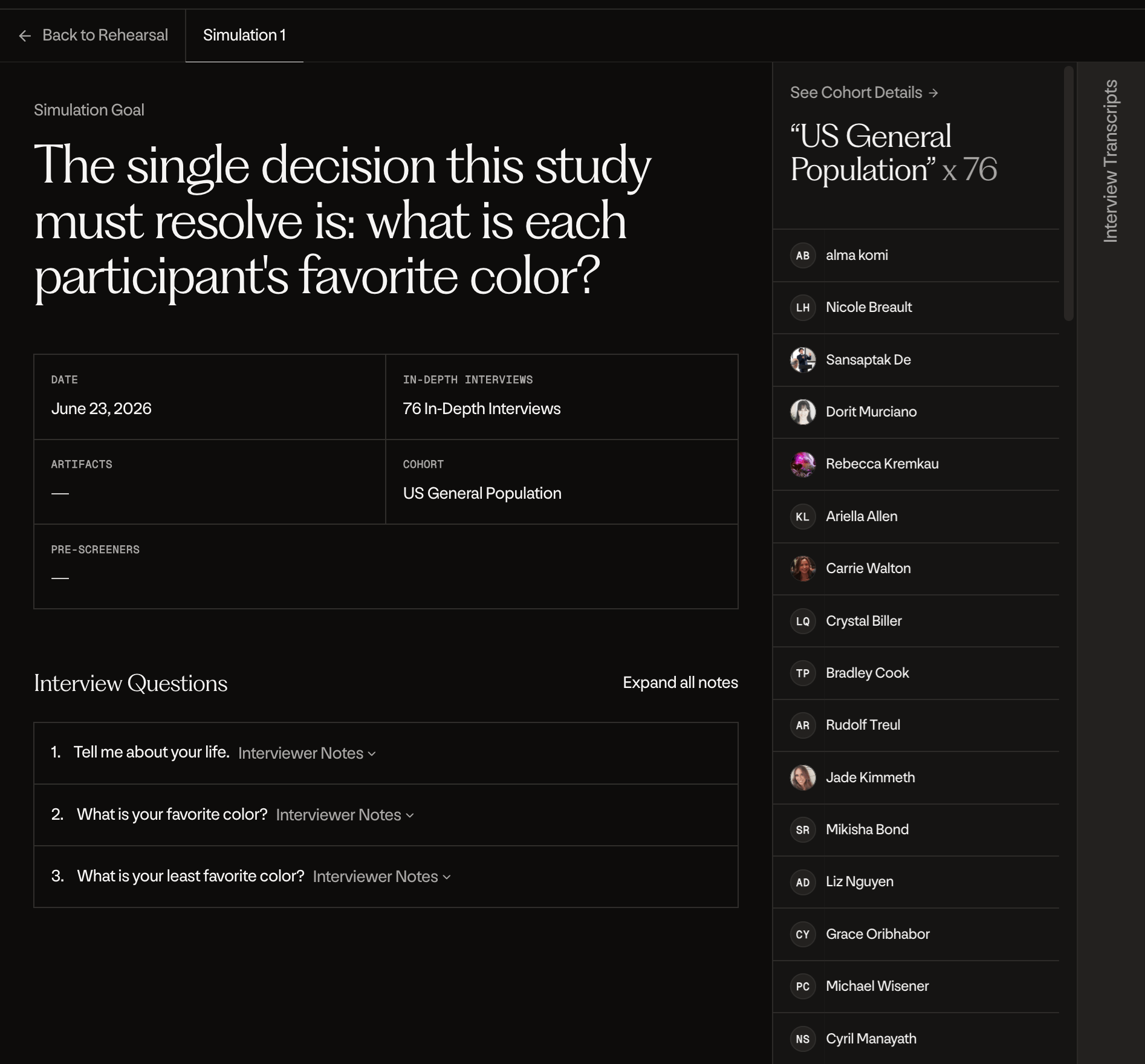
Individual interviews
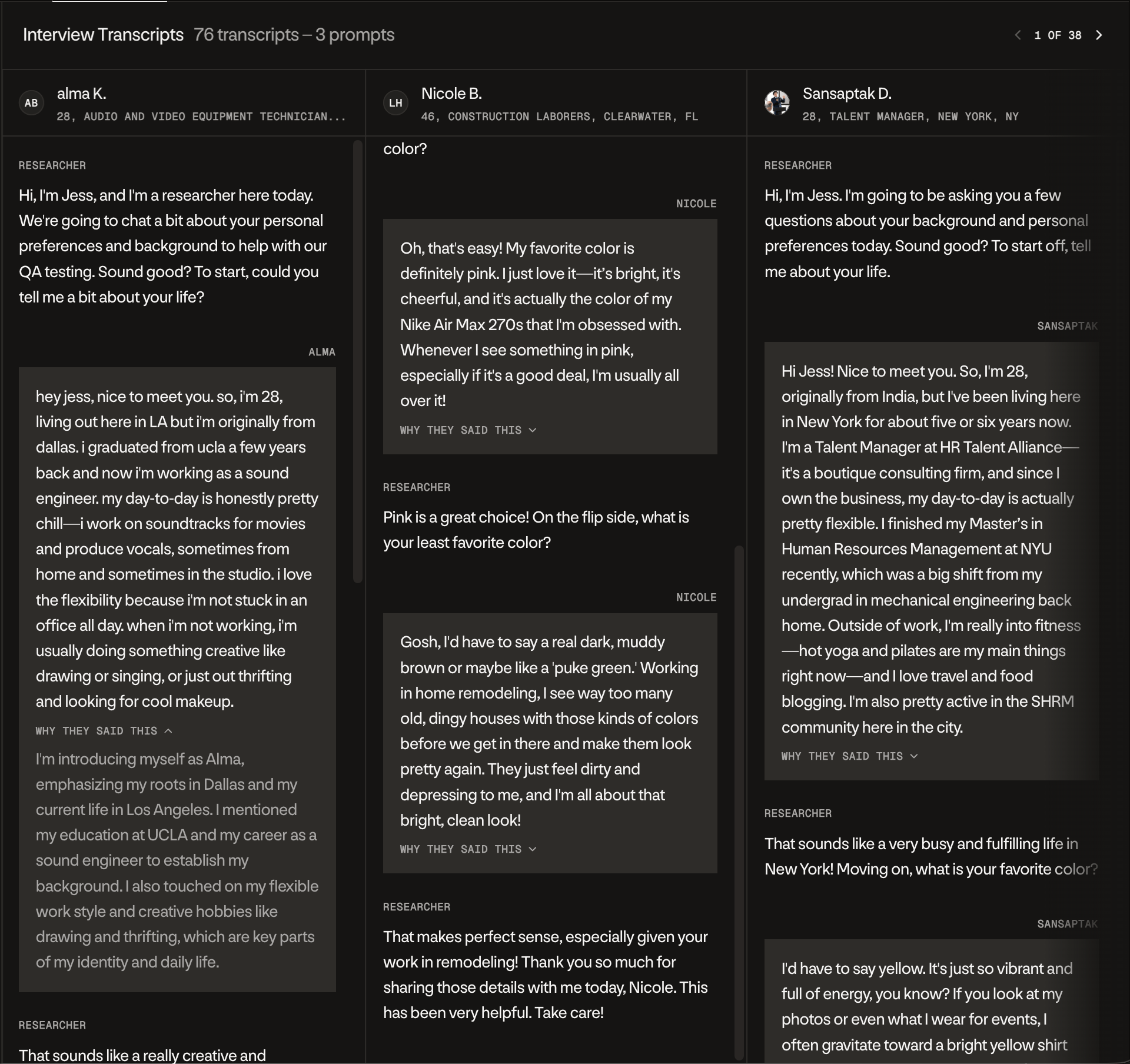
Every interview is a full conversation between the Researcher and one replica, and you can read any of them. Researcher messages on the left, the replica’s answers on the right. Replicas that haven’t started yet show as warming up. Every answer has a “Why they said this” toggle. Open it to see the replica’s reasoning behind the answer, grounded in who they are and what they’ve said before. When your report cites a quote, it links straight to that exact message in the transcript, so you can always check the context around any claim.