> ## Documentation Index
> Fetch the complete documentation index at: https://runrehearsals.com/docs/llms.txt
> Use this file to discover all available pages before exploring further.
# Editing a Rehearsal
> Edit a finished Rehearsal report: highlight what should change, add a note, and generate a new version.
## What is the Edit function?
Once you run your Rehearsal, you can edit the report to best fit your needs. Edit mode allows you to make both structural and stylistic changes to the report.
Edits are a queue of comments, as if you were to comment on a Google Doc, and an agent will rewrite the report based on your feedback.
Editing changes how the report **reads**, not what the interviews **found**. The rewriter works from the same interviews and the same data. If you need different findings, you need a [new Rehearsal](/docs/platform/new-rehearsal).
## What can you edit?
* Any text in the **Overview**
* Any text in the **Appendix**
* **Charts** — click one to leave a note on it
* **Tables** — click one to leave a note on it
* **Verification** — carried over unchanged
* **Population** - linked to the simulation cohorts
* **Interview transcripts** — the raw record of what replicas said
* The **underlying findings** — the numbers come from the interviews
You can queue up to **20 edits** in one turn. If you have more than that, generate an edited report with your initial 20 edits, and then start a second round of edits.
Editing is available to admins and members of the organization that owns the report. People viewing a shared link can read the report but can't edit it.
## How to edit a report, step by step
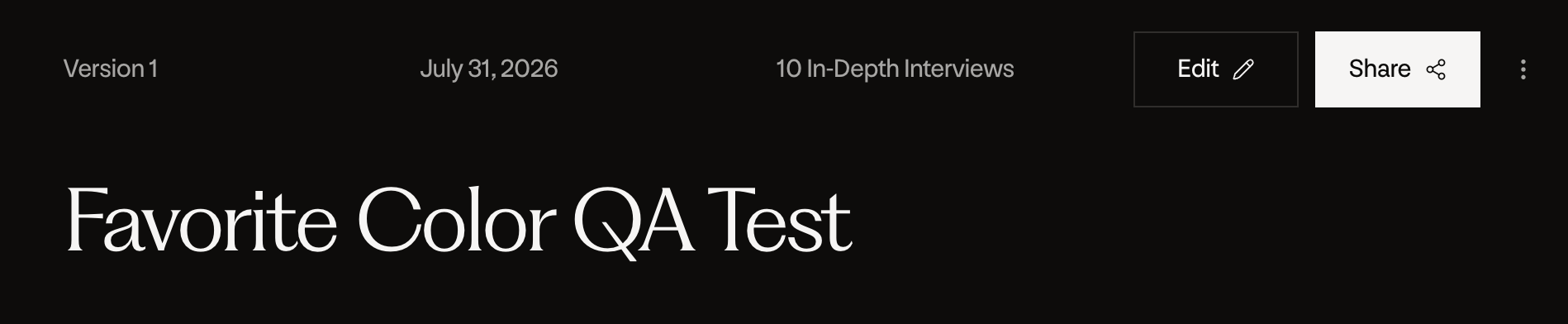
The Edit button lives in the upper right hand corner of the report, next to Share.
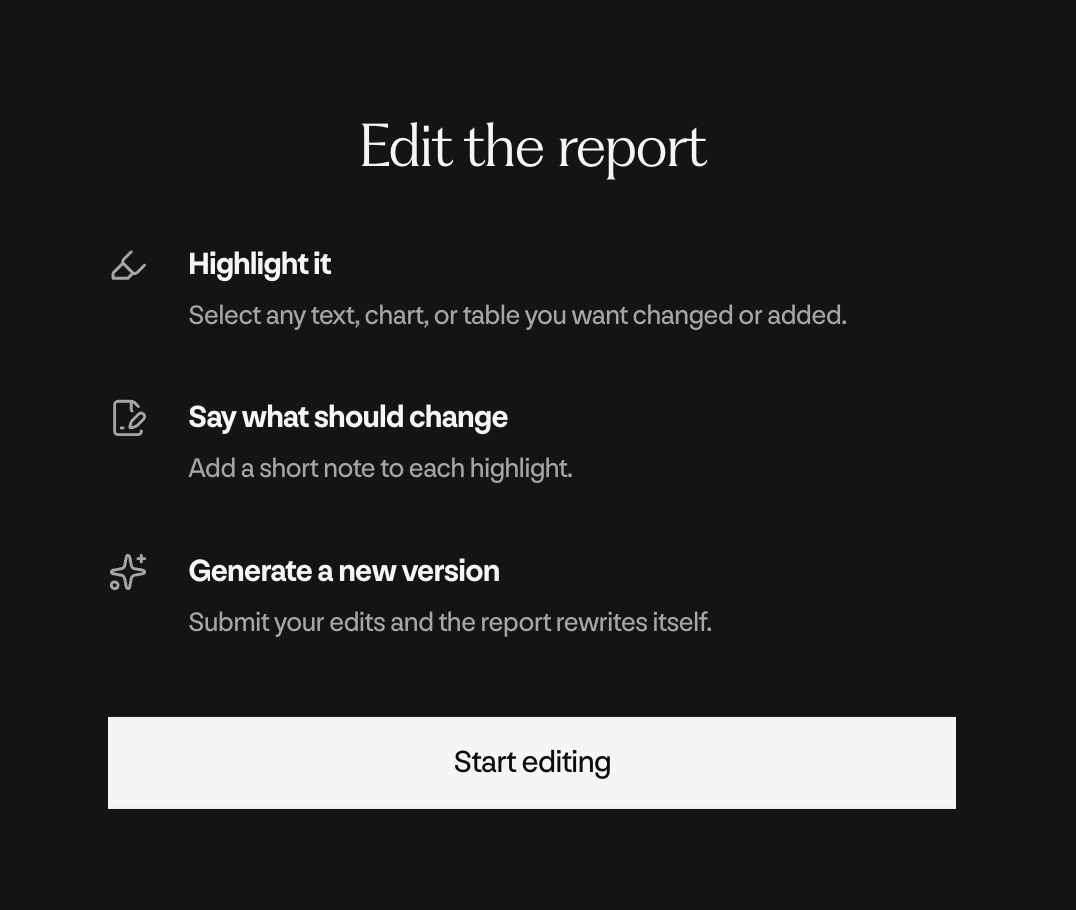
 A short walkthrough of the three steps appears. Press **Start editing** to enter Edit mode. The report itself stays exactly where it was.
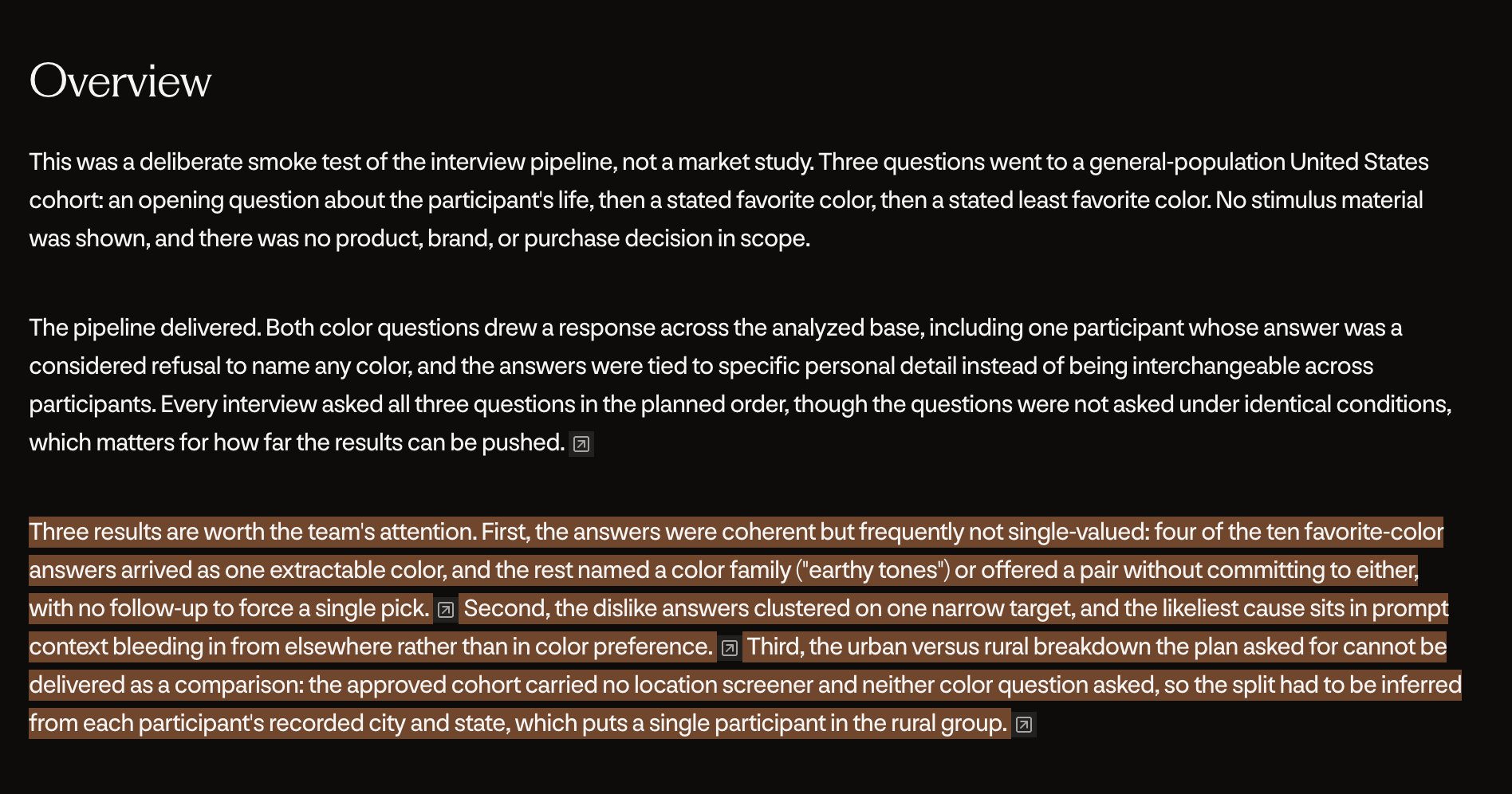
 Drag to select any passage of text, or click a chart or a table. Headings and pull quotes work too.
Highlighted passages turn coral, and charts and tables show an outline when you hover over them.
Drag to select any passage of text, or click a chart or a table. Headings and pull quotes work too.
Highlighted passages turn coral, and charts and tables show an outline when you hover over them.
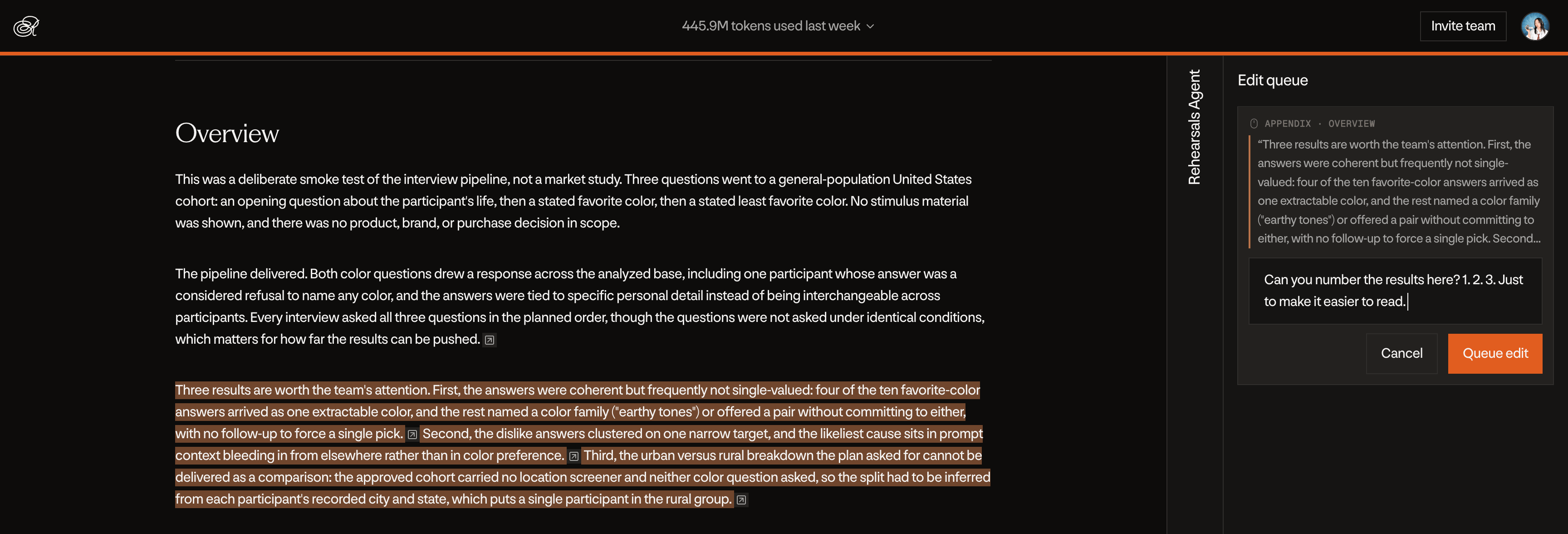
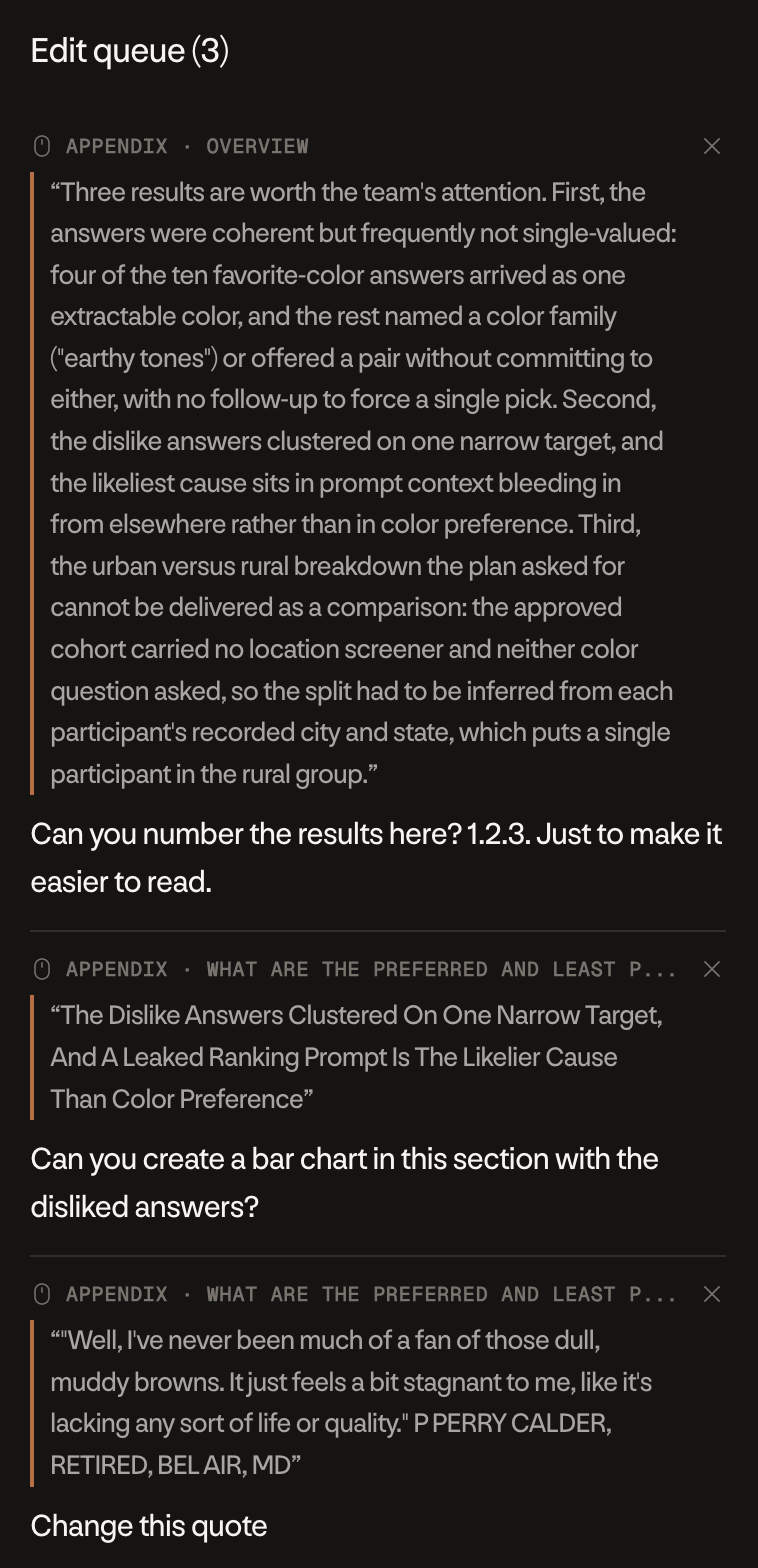
 Your edit queue lives on the righthand side of the report. Like commenting on a highlighted section of the report, describe the change that you want, then press **Queue edit**.
 Describe the outcome you want, not just the problem. "This is too vague" gives the rewriter less to work with than "say which cohort this came from and give the percentage."
Every note you've added appears in the **Edit queue** next to the report, labeled with the section it points at, along with the passage you highlighted. From the queue you can jump back to that section, or press the **×** to remove an edit you've changed your mind about.
Describe the outcome you want, not just the problem. "This is too vague" gives the rewriter less to work with than "say which cohort this came from and give the percentage."
Every note you've added appears in the **Edit queue** next to the report, labeled with the section it points at, along with the passage you highlighted. From the queue you can jump back to that section, or press the **×** to remove an edit you've changed your mind about.
 Queued edits aren't saved until you generate. Leaving Edit mode discards them.
The bar at the bottom of the screen tracks how many edits you have queued. Once you've made the suggested edits in the Edit queue, make sure to hit the **Generate New Report** button on the bottom right side.
Queued edits aren't saved until you generate. Leaving Edit mode discards them.
The bar at the bottom of the screen tracks how many edits you have queued. Once you've made the suggested edits in the Edit queue, make sure to hit the **Generate New Report** button on the bottom right side.
 Edit mode closes and a progress banner appears at the top of the report. The rewrite takes about 5 to 10 minutes, and the report refreshes on its own when it's done.
Editing is iterative. Once the first pass of edits goes through, you can always continue to edit again with tweaks and changes.
Something not working the way you expect? Email [support@runrehearsals.com](mailto:support@runrehearsals.com).
Edit mode closes and a progress banner appears at the top of the report. The rewrite takes about 5 to 10 minutes, and the report refreshes on its own when it's done.
Editing is iterative. Once the first pass of edits goes through, you can always continue to edit again with tweaks and changes.
Something not working the way you expect? Email [support@runrehearsals.com](mailto:support@runrehearsals.com).